


Your phone, laptop, TV, and router all have features built in by their engineers that the marketing team never mentioned and the setup guide never explained. Most of them are not buried in obscure developer menus or require any special knowledge to access. They are just sitting in Settings, waiting for someone to find them. Some are genuinely useful daily. Others solve specific problems you have probably been working around for years. This guide covers the hidden gadget features worth knowing across every device category, with the exact path to find each one.
The reason these hidden gadget features stay hidden is not a conspiracy. It is product design: companies surface the 20% of features most people need most of the time, and everything else lives a few menus deep. The people who find the rest are the ones who read guides like this one.
In this guide, we cover the most useful hidden features on iPhone, Android, Windows 11, MacBook, smart TVs, and your home router, with every path verified and working in 2026.
Hidden Gadget Features: The Usage Gap
Estimated % of device owners who actively use these built-in features.
~18%
~12%
~15%
~8%
~22%
iPhone: The Features Apple Built In But Never Told You About
iOS is layered. What you see on the home screen is the easy surface. Go two or three menus deep in Settings and the phone you thought you knew starts looking different.
Back Tap lets you double or triple tap the physical back of your iPhone to trigger any action: take a screenshot, open the camera, run a Shortcut, toggle the torch, or jump straight into a specific app. Available from iPhone 8 and later running iOS 14 or above. Apple documents this on their official iPhone accessibility features page, but it never surfaces during device setup. Path: Settings > Accessibility > Touch > Back Tap.
Spacebar trackpad lets you hold down the spacebar on the keyboard and drag your finger across it to move the text cursor with precision. Works in every text field across the entire operating system. No setting to enable.
Live Text everywhere lets you point your camera at any printed or handwritten text and tap the yellow frame that appears to copy, translate, search, or call it. Also works retrospectively on any photo in your library. Path: Settings > General > Language & Region > Live Text.
Approximate location means most apps ask for your location. You can give them a rough zone, accurate to a few miles, rather than your exact coordinates. Path: Settings > Privacy & Security > Location Services > select any app > toggle Precise Location off.
Sound Recognition turns your iPhone can listen for specific sounds: smoke alarms, doorbells, sirens, baby cries, or knocking, and notify you when it detects one. Built for accessibility but useful for anyone wearing headphones all day. Path: Settings > Accessibility > Sound Recognition.
Shazam in the Control Centre lets you add a single-tap Shazam button to your Control Centre that identifies any playing music without opening an app. Path: Settings > Control Centre > Add a Control > Music Recognition.
Hide My Email lets you generate a random Apple-managed email address that forwards to your real inbox. Delete it if it starts receiving spam. Requires iCloud+. Path: Settings > your name > iCloud > Hide My Email.
One more: on iPhone Pro models, tap the flashlight icon in the Dynamic Island and drag left to narrow the beam or right to spread it wide. If you want to squeeze even more out of your device setup, our guide on the best Chrome extensions to save time and money covers the browser side of your daily workflow.
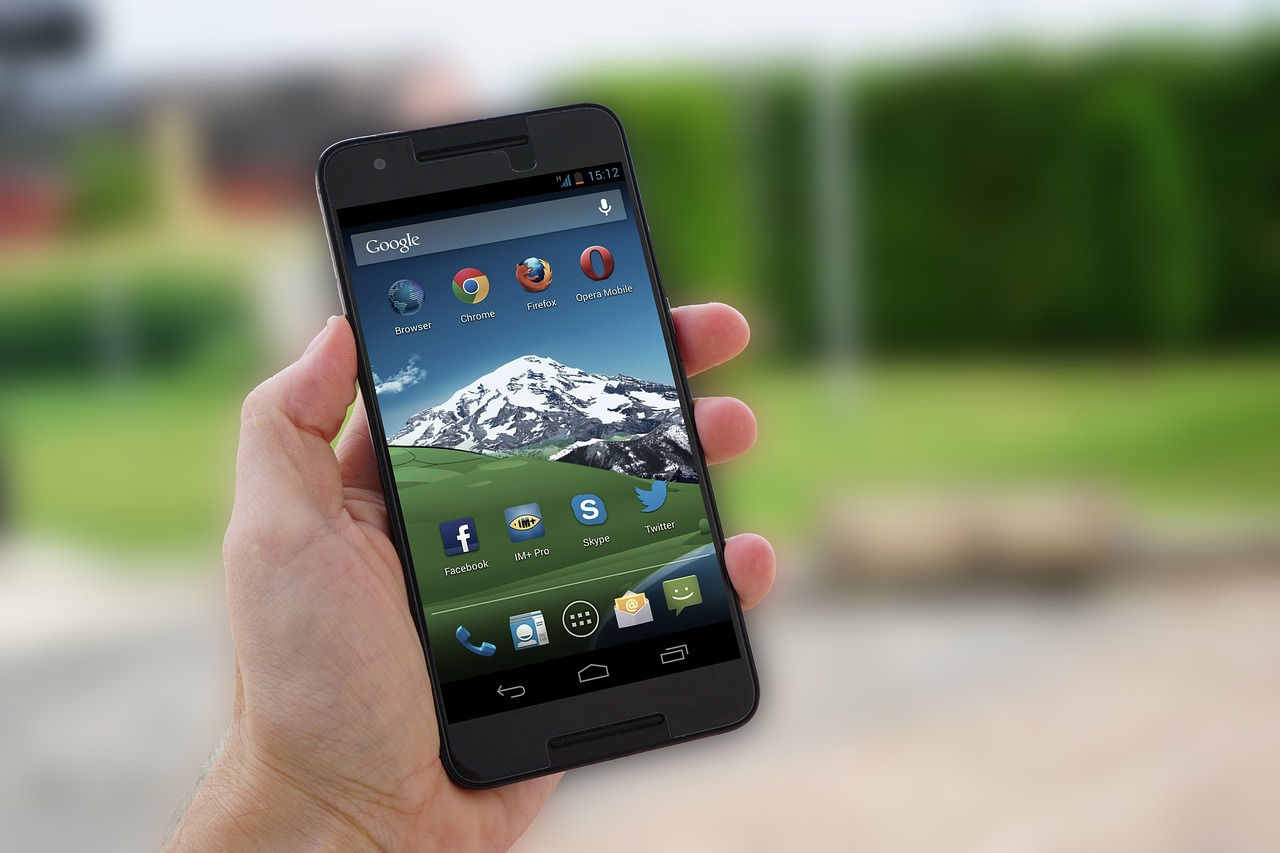
Android: The Settings Google Hides in Plain Sight
Android has a reputation for being customisable, but most people never go further than the home screen wallpaper. The features worth knowing are mostly buried in Settings under names that do not advertise what they do.
Developer Options is an entire hidden settings menu. To unlock: Settings > About Phone > tap Build Number seven times. Find the new menu in Settings > System > Developer Options.
Smart Lock keeps your phone unlocked in trusted contexts: at home, connected to your car’s Bluetooth, in your pocket, or at a saved location. Path: Settings > Security > Smart Lock.
Guest Mode creates a temporary profile with no access to your messages, photos, or apps. All data is wiped when the session ends. Path: swipe down the notification shade, tap the user icon, then Guest.
One-Handed Mode shifts the display down to the bottom half for easier reach on large phones. Samsung: Settings > Advanced Features > One-Handed Mode. Stock Android: Settings > System > Gestures.
App pinning locks the phone to a single app without a PIN to exit. Settings > Security > App Pinning, then open Recent Apps, tap the app icon, select Pin.
Clipboard access notification means Android 12+ shows a notification every time an app reads your clipboard. If you see this from an unexpected app, that is worth investigating.
Developer Options: three specifically useful settings
Window and Transition animation scale lets you set both to 0.5x and every animation on your phone feels twice as fast. Find them at the top of Developer Options.
Force 4x MSAA improves graphics rendering in OpenGL ES 2.0 games. Worth enabling on mid-range or higher devices.
Limit background processes lets you set to 4 or fewer to free RAM on older or lower-spec devices.
Windows 11: The Shortcuts Microsoft Forgot to Tell You Existed
Clipboard History (Win + V) stores up to 25 recent copied items. Press Win + V to open the panel and select anything from your history. Disabled by default, so press Win + V and click the prompt to enable it.
Live Captions (Win + Ctrl + L) provides real-time subtitles for everything your computer plays. Works for YouTube, video calls, films, and podcasts. Processing happens entirely on-device.
Voice Dictation (Win + H) offers hands-free text input anywhere on Windows. Punctuation is handled automatically.
Virtual Desktops (Win + Ctrl + D) lets you create separate desktop workspaces. Switch with Win + Ctrl + Left/Right Arrow. Each desktop maintains its own open windows.
Focus Sessions is a built-in Pomodoro timer in the Windows Clock app that suppresses all notifications for the session duration. Path: Clock app > Focus Sessions.
God Mode lets you create a folder and rename it: GodMode.{ED7BA470-8E54-465E-825C-99712043E01C}. It opens into a master control panel with every Windows setting in one place.
Snap Layouts (Win + Z) provides a visual layout options for splitting your screen into side-by-side panes or a four-quadrant grid.
MacBook: macOS Features That Save Hours Once You Find Them
Universal Clipboard lets you copy on your iPhone, paste on your Mac, or vice versa. Works automatically when both are on the same Apple ID with Bluetooth on.
Quick Look (Spacebar) lets you select any file in Finder and press spacebar for an instant preview without opening the application. PDFs, images, videos, Word documents, audio, all in under a second.
Hot Corners lets you assign actions to each screen corner so moving your cursor there triggers Mission Control, the lock screen, or Launchpad instantly. Path: System Settings > Desktop & Dock > Hot Corners.
Spotlight as a calculator lets you open Spotlight (Cmd + Space) and type any maths expression. Also converts currency, units, and temperature using live exchange rates.
Stage Manager groups open apps into visual clusters for switching between focused workspaces with one click. Path: Control Centre > Stage Manager. Available from macOS Ventura.
Screenshot and screen recording is built in, accessible via Cmd + Shift + 5 opens a unified capture toolbar. No third-party app needed.

Smart TVs: The Settings That Change How the Picture Actually Looks
Turn off motion smoothing as the soap-opera effect is called motion smoothing or motion interpolation. Every manufacturer enables it by default: TruMotion (LG), MotionFlow (Sony), Auto Motion Plus (Samsung). Find it in Picture settings and turn it off. This single change makes films look like films again.
Game Mode / Low Latency Mode reduces input lag from 40–80ms to under 15ms. Enable for gaming, disable for films.
HDMI-CEC lets your HDMI devices communicate. Your console turning on automatically switches the TV input. Your controller can also control TV volume. Called Anynet+ (Samsung), Bravia Sync (Sony), or SimpLink (LG). Disabled by default on some TVs.
Calibration presets lets you switch from Vivid or Dynamic to Cinema or Movie mode. Almost always more accurate and easier on the eyes for home viewing.
Your Router: Features That Affect Every Device in the House
Quality of Service (QoS) lets you assign bandwidth priority to devices. Set video calls and gaming to high, smart home devices to low. Access via 192.168.1.1 in a browser.
Guest network is a separate Wi-Fi that accesses the internet but not your main network. Use it for visitors and smart home gadgets you do not fully trust.
Custom DNS servers lets you switch to Cloudflare’s 1.1.1.1 DNS or Google’s 8.8.8.8 to reduce DNS lookup times and optionally filter malicious domains for every device on your network. Change in WAN Settings > DNS.
Scheduled reboots lets you set a weekly 3am reboot to clear memory issues automatically. Find in Administration > Reboot Schedule.
2.4 GHz vs 5 GHz band management lets you give each band its own name to deliberately route each device to the right frequency. Pair this with smart hardware choices, and our guide on the best budget smartphones for 2026 covers which phones handle 5 GHz well.
FAQ: Hidden Gadget Features on Every Device
Do I need to be technical to use any of these features?
No. Every feature in this guide is an official built-in capability accessible through standard Settings menus or keyboard shortcuts. None require jailbreaking, rooting, or third-party software.
Will enabling Developer Options on Android void my warranty or damage my phone?
No. Developer Options is an official Android feature included intentionally by Google and every major manufacturer. It does not modify the operating system or affect your warranty. The three settings highlighted (animation scale, MSAA, and background process limit) are all completely reversible.
Is turning off motion smoothing on a smart TV really that noticeable?
Yes. Motion smoothing creates extra frames to make movement appear smoother, which is useful for live sport but makes scripted content look like a behind-the-scenes video. Turning it off restores the look the director intended.
How often should I reboot my router?
Most networking engineers recommend a weekly reboot as a maintenance baseline. A router running for several weeks can develop memory issues and performance degradation that a two-minute reboot clears completely.
Conclusion
The features covered here represent a fraction of what is buried in every device most people own. Apple, Google, Microsoft, and router manufacturers build far more into their products than the marketing material suggests. The benefit of finding these hidden gadget features accrues to whoever looks for them.
Start with whichever device you use most. Enable Clipboard History on Windows with Win + V right now. Set up Back Tap on your iPhone this afternoon. Turn off motion smoothing on your TV tonight. Each takes under two minutes and changes how you use that device from the moment you enable it.