


Over 36 million Americans now work remotely at least part of the time, according to Bureau of Labor Statistics telework trend data, and 77% of them say they are more productive at home than in an office. The monitor is the single piece of equipment with the biggest daily impact on that productivity, and most people are still using a laptop screen, a sub-par display they bought in 2019, or a gaming monitor with settings designed for frame rates rather than text clarity. This guide gives you specific recommendations for the best monitors for working from home in 2026 across every budget and use case, with the specs that actually matter explained clearly.
The monitor market has matured significantly. USB-C single-cable docking is now standard on any monitor worth recommending. IPS Black panels have replaced basic IPS as the new midrange baseline. And the price of high-quality 4K monitors has dropped enough that 1440p at 27 inches has become the value sweet spot rather than a premium upgrade.
In this guide, we cover what to look for before you buy, the best monitors at each price tier, specific use case picks, and why most people should prioritise resolution and ergonomics over features they will never use.
What Actually Matters in a WFH Monitor: The Short Version
Most monitor specifications are irrelevant for work. Response time, refresh rate above 100Hz, HDR performance ratings, and gaming certifications have no bearing on how comfortable and productive your day at a desk will be. The specs that do matter are fewer than most buyers realise.
- IPS panels are the right choice for a work monitor in almost every case. IPS (In-Plane Switching) is the right choice for a work monitor in almost every case. It delivers consistent colour accuracy and wide viewing angles, which matters when you are sharing your screen with a colleague sitting beside you or glancing at the display from a slight angle. VA panels have better contrast but their colour accuracy is inconsistent at angles. OLED has exceptional contrast but burn-in risk for static UI elements shown for hours. Stick with IPS for work.
- On resolution and size: 1080p is adequate on a 24-inch monitor but starts to look noticeably soft at 27 inches. 1440p (2560×1440) is the sweet spot at 27 inches. 4K at 32 inches delivers exceptional clarity now at an accessible price.
- USB-C with Power Delivery means One cable from your laptop to the monitor should carry video signal, power the monitor, charge your laptop, and connect peripherals. Look for at least 65W Power Delivery; 90W or above for high-performance laptops.
- Ergonomic adjustability matters: Height adjustment, tilt, and swivel allow correct positioning. A monitor with poor stand adjustability usually ends up on books within a month.
- On screen size: 27 inches is the right starting point for a dedicated WFH monitor. 32 inches works for spreadsheet-heavy work or design. Below 24 inches is fine as secondary but restrictive as primary.
- On refresh rate: 75Hz minimum. 100Hz or 144Hz is better and now standard even on budget monitors.
One feature that matters more than it appears on a spec sheet: the quality of the built-in USB hub. A monitor with a good hub that includes USB-A, USB-C, and Ethernet passthrough can eliminate a separate dock entirely. Budget monitors often list USB ports that turn out to be version 2.0. Check the specific USB spec before purchasing.
WFH Monitor Price Tiers 2026
Average retail price ranges by tier (USD). Source: Rtings, Dell, LG, ASUS.
Under $250
$300-$450
$580-$620
$500-$700
$1,000+

Best Overall: Dell UltraSharp U2723QE
The Dell UltraSharp U2723QE is the most consistently recommended WFH monitor across independent reviews, and that consensus is earned.
It is a 27-inch IPS Black panel at 4K resolution. IPS Black is Dell’s enhanced IPS technology that delivers roughly double the contrast of standard IPS while maintaining the wide viewing angles and colour accuracy that make IPS the preferred panel type for work. The result is a monitor that handles documents and spreadsheets cleanly, makes video calls look natural, and does not fatigue your eyes across a full working day.
Connectivity is the strongest part of the value case. The U2723QE includes Thunderbolt 4 with 90W Power Delivery, DisplayPort In and Out, HDMI, USB-C, and a full USB hub. The Thunderbolt 4 output means you can daisy-chain a second monitor without a second cable run back to your laptop.
Dell UltraSharp U2723QE is better for professionals who want a single-cable setup with maximum connectivity, reliable colour accuracy for design or presentations, and build quality that will last five or more years, while a mid-range 1440p option is better for those who want strong performance at a lower price and do not need the full Thunderbolt ecosystem.
Retail price sits around £550 to £600 in the UK and $580 to $620 in the US. According to Rtings’ best monitors for office use in 2026, the U2723QE remains the leading recommendation in its category for text clarity and connectivity.
Best Value: The 1440p 27-Inch Sweet Spot
For most WFH workers, a 1440p 27-inch IPS monitor with USB-C power delivery is the best value purchase in the category. The resolution is sharp enough for all-day text work, the 27-inch size is right for most desk setups, and the price point sits well below 4K alternatives without a meaningful sacrifice in daily usability.
- The LG 27UP850-W is a 27-inch 4K USB-C monitor with 96W Power Delivery. Frequently drops in price to compete with 1440p alternatives. Slightly more accurate factory calibration than comparable Samsung options.
- The BenQ PD2725U is a 27-inch 4K IPS with Thunderbolt 4. BenQ’s eye care technology is among the better implementations for all-day use.
- The Samsung S80PB (27-inch) is a Mid-range UHD IPS with USB-C at 65W. Works best with laptops drawing under 60W.
The ASUS ProArt PA278CV is particularly strong: 1440p IPS, 90W USB-C Power Delivery, factory colour calibration, and fully adjustable stand for under £350 in most UK retailers.
Budget Pick: Solid WFH Performance Under £200
Below £200 / $250, the question is which compromises matter least for your specific workflow.
- The Acer Vero B247Y G is a 24-inch 1080p IPS. Acer’s sustainability-focused Vero line. Fine for a secondary monitor. Does not include USB-C.
- The AOC Q2790PQE is a 27-inch 1440p IPS that regularly goes on sale below £200. Stand limited to tilt only. If you use a VESA arm, this is excellent value.
- The Philips 279P1 is a 27-inch 4K IPS panel, USB-C with 65W Power Delivery, adjustable stand, at a price that undercuts Dell significantly.
The main thing to avoid: monitors with 1080p resolution on screens larger than 25 inches. At 27 inches and above, 1080p pixel density is low enough that text has visible jagged edges and your eyes will work harder across a full day.
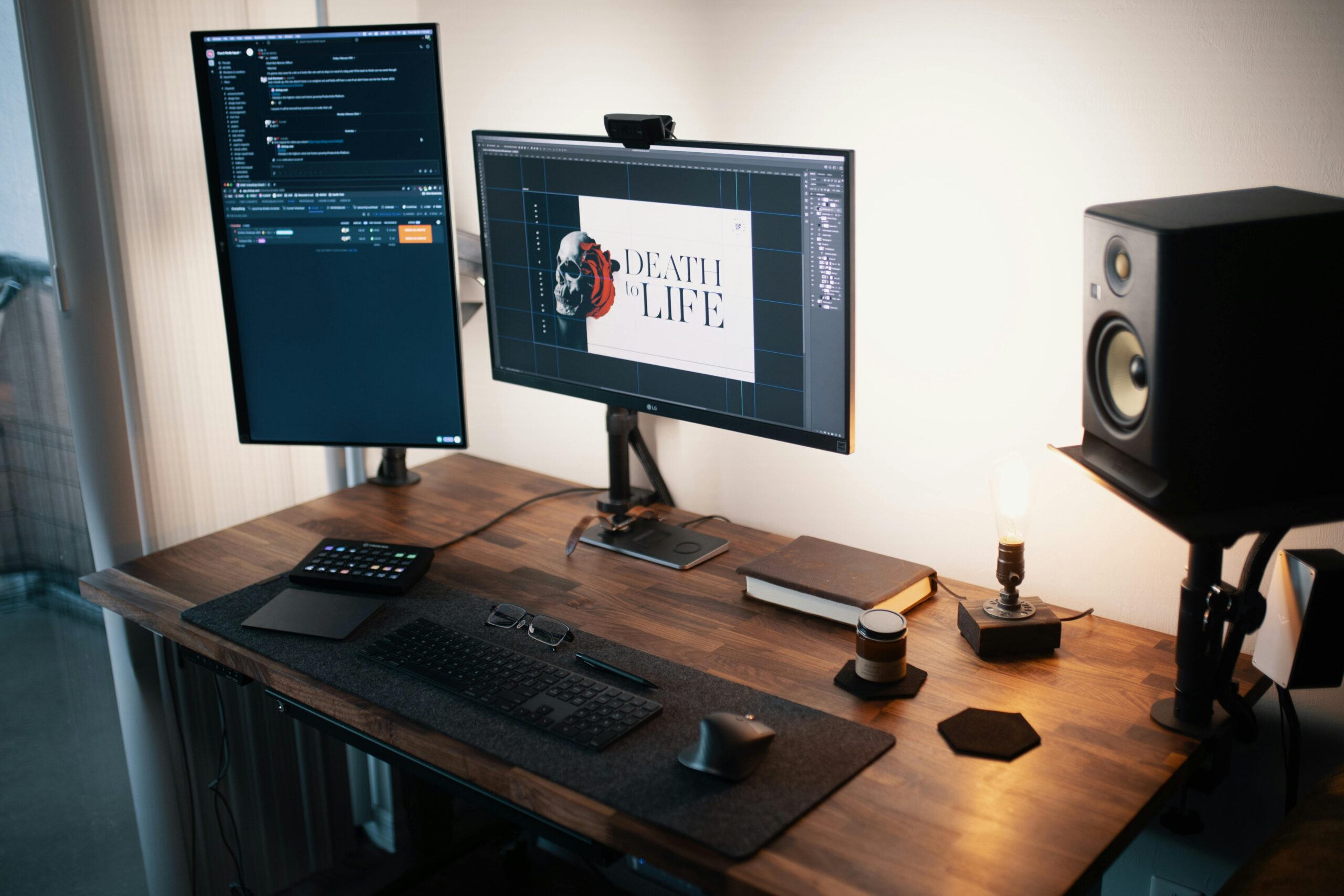
Ultrawide Monitors: The Genuine Productivity Upgrade
Ultrawide monitors are the biggest single productivity upgrade for people who routinely work with multiple applications simultaneously. Ultrawide monitors are Displays with an aspect ratio wider than 16:9. The most common WFH formats are 34-inch 21:9 (3440×1440) and 49-inch 32:9 super-ultrawide (5120×1440).
- The LG 34WP85C-B is a 34-inch curved QHD ultrawide with USB-C 90W Power Delivery. Nano IPS panel. The WFH ultrawide value benchmark.
- The Samsung ViewFinity S6 (S65VC) is a 34-inch QHD ultrawide with flat (not curved) panel. Good if you have not used curved ultrawide before.
- The Dell UltraSharp U3423WE is a 34-inch ultrawide with IPS Black technology. Thunderbolt 4, daisy-chain output. Premium option priced accordingly.
Ultrawide monitors are better for people who multitask heavily across multiple applications, while dual monitor setups are better for those who want flexibility, need to reference a secondary source during primary work, or have limited desk depth.
Mac Users and the Apple Display Question
For anyone working on a MacBook Pro or MacBook Air, display choices involve Retina scaling, colour profile compatibility, and connector standards. macOS handles high-resolution displays differently from Windows using Retina scaling that looks sharpest at specific pixel density ratios.
- The Dell UltraSharp U2723QE offers Thunderbolt 4 compatibility with MacBook Pro M-series chips is seamless. Single cable setup works perfectly.
- The BenQ PD2730S (5K, 27-inch) costs Around £800. 5K resolution, 218ppi. Higher density than Apple Pro Display XDR. Two Thunderbolt 4 ports at 90W.
- The Samsung ViewFinity S9 (5K, 27-inch) has Thunderbolt 4, built-in 4K webcam. Price-competitive with BenQ above.
Apple Studio Display at approximately £1,599 remains the premium option: 5K Retina, Thunderbolt 3, 96W Power Delivery, 12MP webcam with Centre Stage. The ecosystem integration justifies the premium for video-call-heavy users.
Portable Monitors: The WFH Supplement Worth Considering
Current portable options in the 15 to 16-inch range deliver 1080p or 1440p resolution, USB-C single-cable connection, and weights around 700 to 900 grams. The Arzopa Z3FC reaches 1440p at 16 inches with 180Hz. If you are equipping a wider home study setup, our guide to the best gadgets for students covers accessories that pair well with any of these displays.
The right use case: a second screen during travel, a presentation display on a client’s desk, or a permanent second screen at a secondary location. Not a replacement for a primary WFH display due to smaller size and reduced stand quality.
FAQ: WFH Monitors
Is 4K worth it for a WFH monitor in 2026?
Yes, at 27 inches and above. The price gap between 1440p and 4K has narrowed enough that 4K at 27 inches is a reasonable default. The primary benefit is text sharpness: at 4K on a 27-inch screen, text looks perceptibly different from 1080p or 1440p in a way that reduces eye strain across a full working day.
Should I get a 27-inch or 32-inch monitor for WFH?
27 inches is the right choice for most people. It fits a standard home desk, the pixel density at 1440p or 4K is high enough for sharp text, and the cost is lower. The case for 32 inches is specific: large spreadsheets with many visible columns, design or video editing, or a deep desk that naturally pushes your viewing distance further back.
What is the difference between IPS and IPS Black?
IPS Black achieves roughly double the contrast ratio of standard IPS panels, around 2,000:1 compared to 1,000:1. Blacks look darker and the image has more depth, which reduces eye fatigue in mixed dark and light interface use. The colour accuracy and viewing angle performance of IPS Black matches standard IPS.
Do I need USB-C Power Delivery on my monitor?
Yes, if your primary work machine is a modern laptop. Single-cable docking where one USB-C or Thunderbolt cable carries video, powers the monitor, and charges the laptop is the cleanest possible desk setup. The minimum useful Power Delivery wattage is 65W; 90W is better for MacBook Pro and higher-performance Windows machines.
Conclusion
The best WFH monitor for most people in 2026 is a 27-inch IPS or IPS Black display at 4K or 1440p, with USB-C Power Delivery above 65W, a fully adjustable stand, and a good USB hub. That fits the Dell UltraSharp U2723QE at the premium tier and the ASUS ProArt PA278CV or LG 27UP850-W at the value tier.
Do not buy more monitor than your desk and workflow justify. A 34-inch ultrawide is genuinely better than dual monitors for some people and worse for others. And if hardware costs concern you, it is worth reading about whether the broader AI-driven surge in hardware prices affects the components you are pairing with your monitor.
The one thing to prioritise above everything else is positioning. A well-adjusted average monitor beats an expensive monitor on a fixed stand at the wrong height or distance.